How to Temporarily Block Apps on iPhone: A Practical Guide
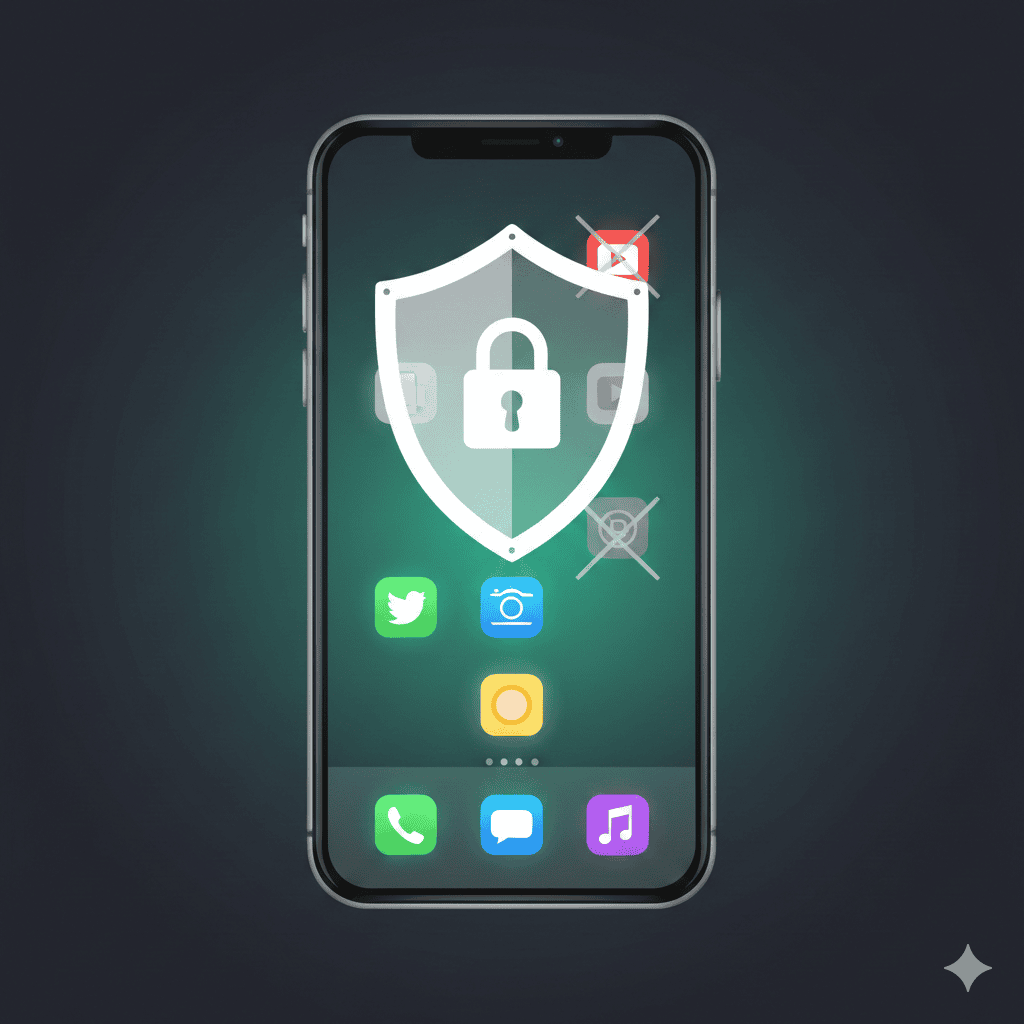
Need to block distracting apps on your iPhone? Whether you're trying to focus on work, study without interruptions, or just break a scrolling habit, iPhone has built-in tools that can help—plus some third-party options worth knowing about.
This guide covers the main methods for blocking apps, when to use each one, and practical tips for making app blocking effective long-term.
Method 1: Screen Time App Limits
App Limits let you set daily time caps on specific apps or entire categories. Once you hit your limit, the app gets blocked for the rest of the day.
How to Set Up App Limits
- Open Settings > Screen Time
- If Screen Time isn't enabled, tap Turn On Screen Time and follow the prompts
- Tap App Limits > Add Limit
- Choose what to limit:
- Categories (Social, Entertainment, Games, etc.)
- Specific apps within categories
- Set your daily time allowance (e.g., 30 minutes)
- Tap Add
Setting a Passcode (Recommended)
Without a passcode, you can easily tap "Ignore Limit" when blocked. To add friction:
- Go to Settings > Screen Time
- Tap Lock Screen Time Settings
- Create a passcode you won't easily remember—or have someone else set it
For stronger enforcement, have a friend or family member set the Screen Time passcode. You won't be able to override limits without asking them.
Best For
- Limiting daily usage of specific apps (social media, games)
- Building awareness of how much time you spend on certain apps
- Gradual habit change rather than cold-turkey blocking
Method 2: Downtime (Schedule-Based Blocking)
Downtime blocks all apps except ones you specifically allow, during scheduled hours. It's useful for protecting focus time or winding down before bed.
How to Set Up Downtime
- Go to Settings > Screen Time > Downtime
- Toggle on Scheduled
- Set your blocked hours (e.g., 9 AM – 12 PM for morning focus, or 10 PM – 7 AM for sleep)
- Choose whether to apply every day or customize by day of the week
Setting Always Allowed Apps
During Downtime, only whitelisted apps work:
- Go to Settings > Screen Time > Always Allowed
- Add essential apps: Phone, Messages, Maps, or work tools you need
- Remove anything that could become a distraction substitute
Best For
- Protecting specific time blocks for focused work
- Creating a phone-free wind-down routine before bed
- Blocking everything at once rather than app-by-app
Method 3: Content & Privacy Restrictions
This method completely hides apps from your iPhone—they won't appear on your home screen at all. It's the most aggressive built-in option.
How to Hide Apps Completely
- Go to Settings > Screen Time > Content & Privacy Restrictions
- Toggle on Content & Privacy Restrictions
- Tap Allowed Apps
- Toggle off any apps you want to hide (Safari, Camera, FaceTime, etc.)
The apps disappear until you toggle them back on.
Blocking App Store Downloads
To prevent installing new apps that might become distractions:
- In Content & Privacy Restrictions, tap iTunes & App Store Purchases
- Set Installing Apps to Don't Allow
Best For
- Removing temptation entirely during a focus period
- Preventing yourself from downloading new distracting apps
- Situations where you need zero access to certain apps
Method 4: Focus Modes (iOS 15+)
Focus modes let you create custom profiles that filter notifications and optionally hide certain apps from your home screen.
How to Set Up a Work Focus
- Go to Settings > Focus
- Tap the + button > Custom
- Name it (e.g., "Deep Work")
- Choose which people and apps can send notifications
- Under Customize Screens, choose which home screen pages appear in this mode
Scheduling Focus Modes
You can trigger Focus modes automatically:
- In your Focus settings, tap Add Schedule
- Set times, locations, or app-based triggers
Best For
- Filtering notifications without fully blocking apps
- Creating different phone "modes" for work, personal time, sleep
- Light-touch approach that hides distractions without hard blocks
Method 5: Third-Party App Blockers
For more control than Screen Time offers, third-party apps provide additional features like stricter blocking, focus timers, and usage analytics.
Popular Options
| App | Key Feature | Price |
|---|---|---|
| Opal | Session-based blocking with social accountability | Free / Premium |
| One Sec | Adds delay before opening apps | Free / Premium |
| Freedom | Cross-device blocking (iPhone, Mac, Windows) | Subscription |
| FocusFit | Combines app blocking with focus training | Free / Premium |
What Third-Party Apps Add
- Stricter enforcement: Some make it genuinely difficult to override blocks
- Scheduled sessions: Block apps for a set focus period, then auto-unblock
- Better analytics: More detailed tracking than Screen Time provides
- Cross-platform: Block apps on all your devices simultaneously
Due to Apple's restrictions, no third-party app can block other apps as strictly as Screen Time. Most work by adding friction (delays, reminders) rather than true blocking. For hardest blocks, use Screen Time with a passcode.
Tips for Making App Blocking Work
Blocking apps is easy. Making it stick is harder. Here's what helps:
1. Block Categories, Not Just Apps
If you only block Instagram, you might find yourself on Twitter instead. Block the entire Social category to close the loopholes.
2. Plan for the Urge
When you can't access a blocked app, you'll feel the pull to check something. Decide in advance what you'll do instead—have a book nearby, a work task ready, or just notice the urge without acting on it.
3. Start with Specific Time Windows
Blocking apps 24/7 often leads to frustration and eventually disabling all your limits. Start with protected windows—morning work hours, evenings before bed—and expand from there.
4. Use Blocking for Focus Sessions
The most effective use of app blocking is during dedicated focus time. Block distractions for 60-90 minutes while you work, then allow access during breaks. This is sustainable in a way that permanent blocking often isn't.
5. Combine Blocking with Intention
App blocking removes temptation but doesn't build focus skills. Pair it with deliberate practice: when apps are blocked, work on something specific rather than just waiting for the block to end.
Quick Setup for Common Scenarios
"I want to focus during work hours"
- Set up Downtime for your work hours (e.g., 9 AM – 5 PM)
- Add work apps to Always Allowed
- Enable the Screen Time passcode
"I want to stop scrolling before bed"
- Set up Downtime starting 1-2 hours before bed
- Only allow Phone, Messages, and a reading app
- Consider hiding Safari to prevent "just one more article"
"I want to block one specific app that's a problem"
- Create an App Limit for that specific app
- Set the limit to 0 minutes (or 1 minute to see usage)
- Enable Screen Time passcode
"I want to completely detox for a week"
- Use Content & Privacy Restrictions to hide social apps
- Set Installing Apps to Don't Allow
- Have someone else set your Screen Time passcode
When App Blocking Isn't Enough
App blocking works well for reducing mindless usage and protecting focus time. But if you find yourself constantly fighting the urge to check your phone even when apps are blocked, the issue might be deeper than app access.
In that case, consider approaches that train attention capacity—not just block distractions. Tools like FocusFit combine app blocking with focus session training, so you're building the skill of sustained attention alongside removing temptations.
The goal isn't to block apps forever. It's to reach a point where you don't need to.
These instructions are current as of iOS 17/18. Screen Time options may vary slightly depending on your iOS version.
Ready to rebuild your focus?
Start your 14-day free trial of FocusFit and train your attention with AI-powered coaching.
Download FocusFit